Create and run a group
A free space where your school, club, residence or neighbourhood buys, sells, exchanges and gives among its members.
A group is a space for one real community — a school, a club, a daycare, a residence, a neighbourhood, an organization or a family — where its members buy, sell, exchange and give items among themselves. It is free, nobody needs a social-media account, and the money never passes through UpChansa: buyers pay the seller directly, as everywhere else on the site. To start, open Groups in the menu and choose Create a group.
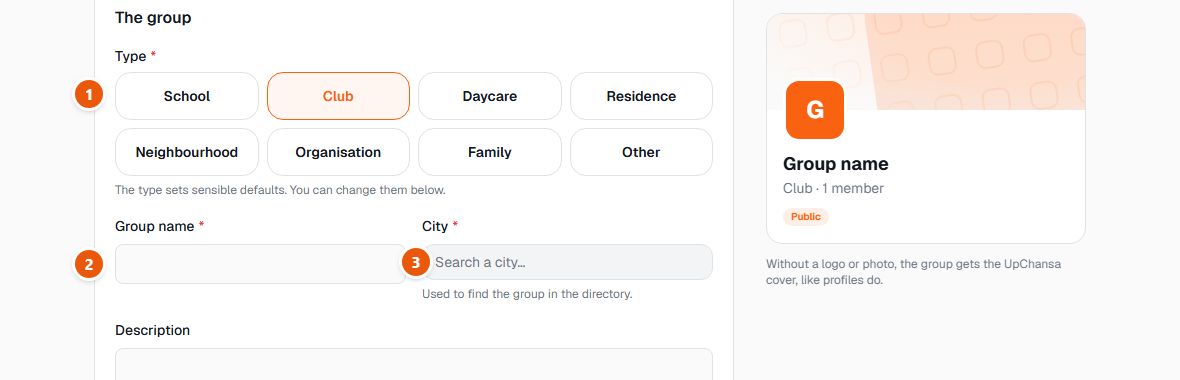
- 1Pick the type. It sets sensible defaults you can change below — and it sets a few limits on purpose: in a school or daycare group only members see the items at first, and they can never be public as soon as they are posted; in a family group, only members ever see them.
- 2Name the group the way its members already call it, so they recognize it in an invitation.
- 3Choose the city. It is how people find the group in the groups directory when the group is visible.
Who can find the group. Visible, the default: anyone can find the group in the groups directory and ask to join. If only members see the items, visitors see the group's name, type, city, description, photo and number of members — never its items, members or admins — and every request waits for an admin's decision. Hidden: only the people you invite can find it, through the invitation link, the poster's QR code or an invitation by @username.
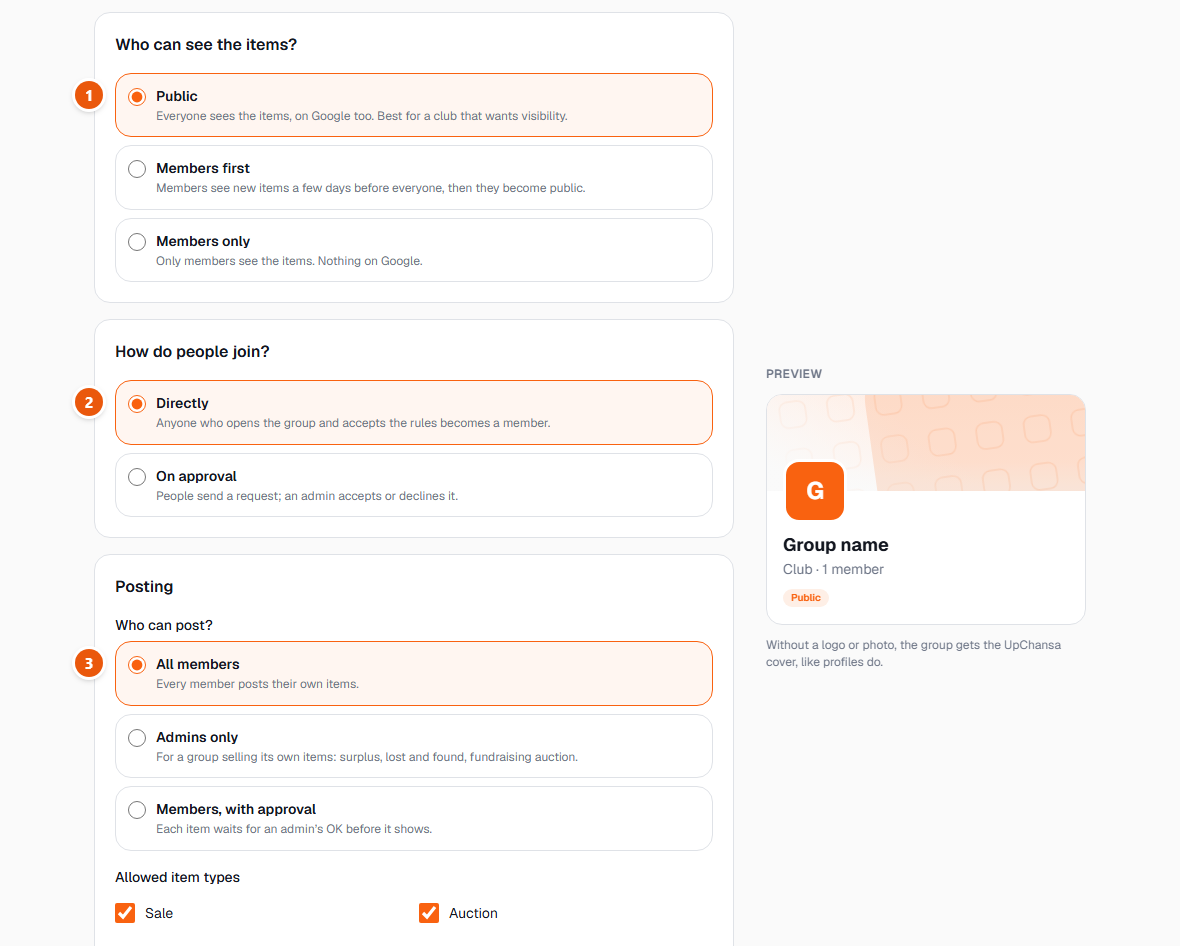
- 1Who can see the items. Public: everyone, search engines included. Members first: members see new items for a few days, then everyone does. Members only: the items are hidden from the public and from search engines, but every member can see them, so they are private from strangers, not from the group.
- 2How people join. Directly: anyone who opens the group and accepts the rules becomes a member — not available for a visible group whose items are for members only, since anyone could then see them. On approval: people send a request and an admin accepts or declines it — you can ask up to three short questions. Never ask anything sensitive: no child's name, address or health information.
- 3Who can post: all members, admins only (for a group selling its own items), or members with approval, where each item waits for an admin's OK. Below it, tick the kinds of items the group allows — sale, auction, exchange, free.
Last, write the group's own rules if you want some. Tick the box confirming that the members are adults and that you will not post any information about children, then create the group. You are its admin — and its creator.
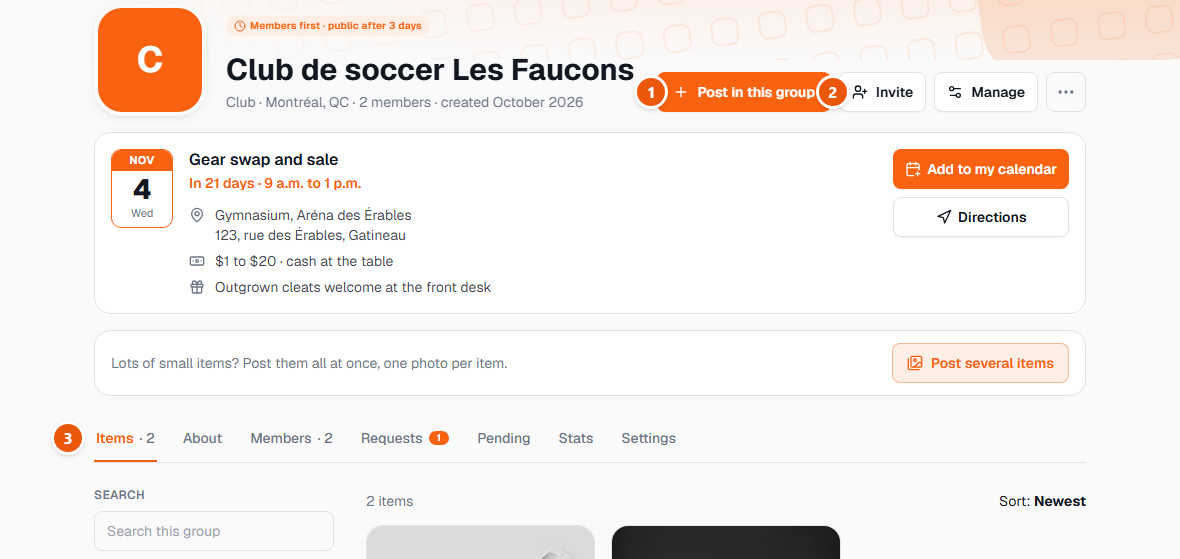
- 1Post in this group opens the usual listing form with the group already chosen. As an admin you can also post on behalf of the group — the listing then shows “Sold by” with the group's name, and the group receives the payment directly.
- 2Invite takes you straight to the invitation tools.
- 3Items and About are what every member sees. The other tabs — Members, Requests, Pending, Stats and Settings — are visible only to the group's admins, and a number on a tab means something is waiting for you.
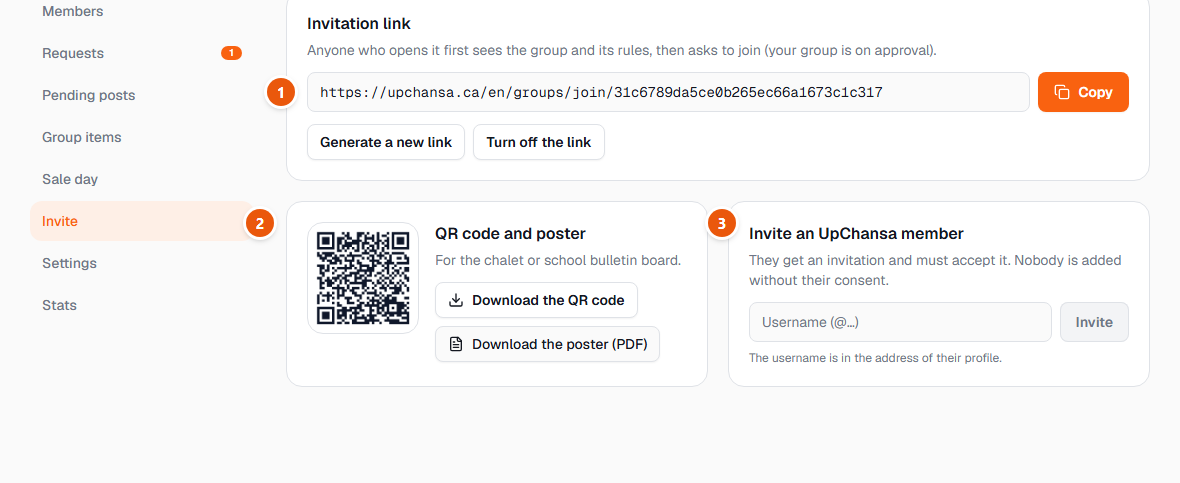
- 1Copy the invitation link and share it where your community already talks. The link always opens the group's page and its rules first. You can make a new link at any time — the old one then stops working — or turn it off.
- 2Download the QR code, or the printable poster, for a bulletin board or a newsletter.
- 3Invite an UpChansa member by their @username — it is in the address of their profile. They receive an invitation and join only if they accept it — nobody is ever added to a group without their own click.
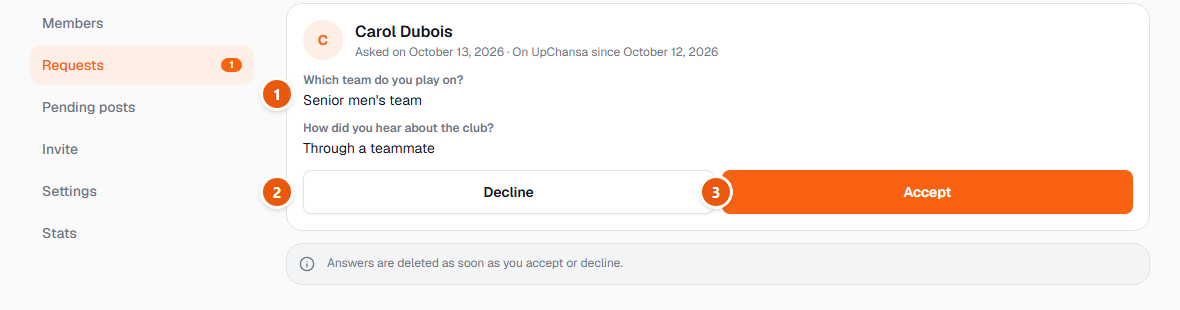
- 1With joining on approval, each request shows the person's answers to your questions. Only the group's admins (and UpChansa staff when needed) see them.
- 2Decline, with an optional reason that is sent to the person.
- 3Accept. Either way, the answers are deleted as soon as you decide.
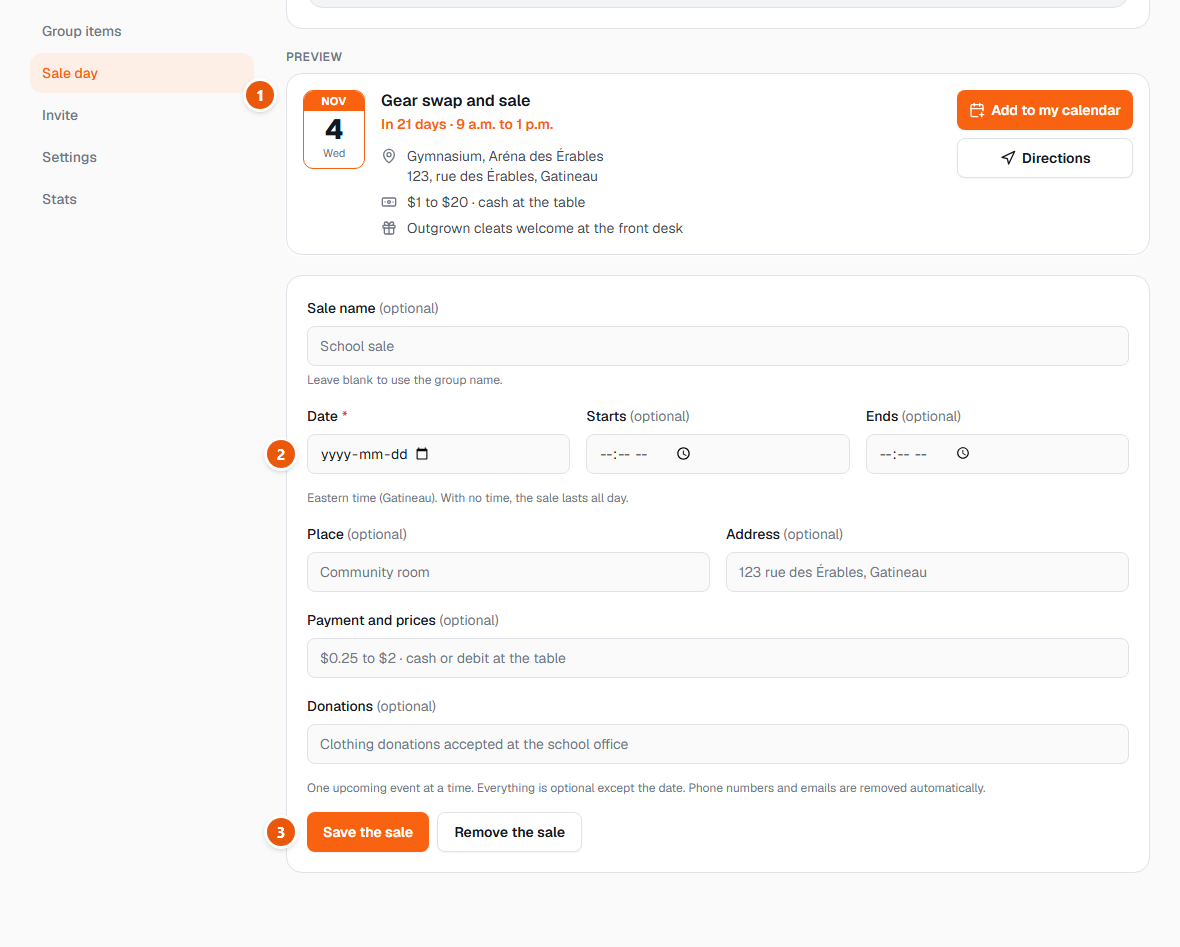
Announce the sale day. Holding a thrift sale or a gear swap? Open Manage group, then the Sale day tab. Only the date is required. The card appears at the top of the group, on the invite page and on the printable poster, and it updates itself: “In 21 days”, then “Today”, then a short “Sale over” note for 24 hours before it disappears. The items stay.
- 1The preview shows the card exactly as members will see it, with “Add to my calendar” and, when you give an address, “Directions”.
- 2Pick the date, then the start and end times in Eastern time (Gatineau). Leave the times empty for an all-day sale.
- 3Save the sale. One upcoming sale at a time: saving again edits it, and Remove the sale takes the card down everywhere. Phone numbers and emails are removed automatically from the text.
Who sees the sale: anyone who can see the group page — in a private group, its members — plus anyone with the invite link or the poster. That includes the address, so write only the place you would put on a public flyer.
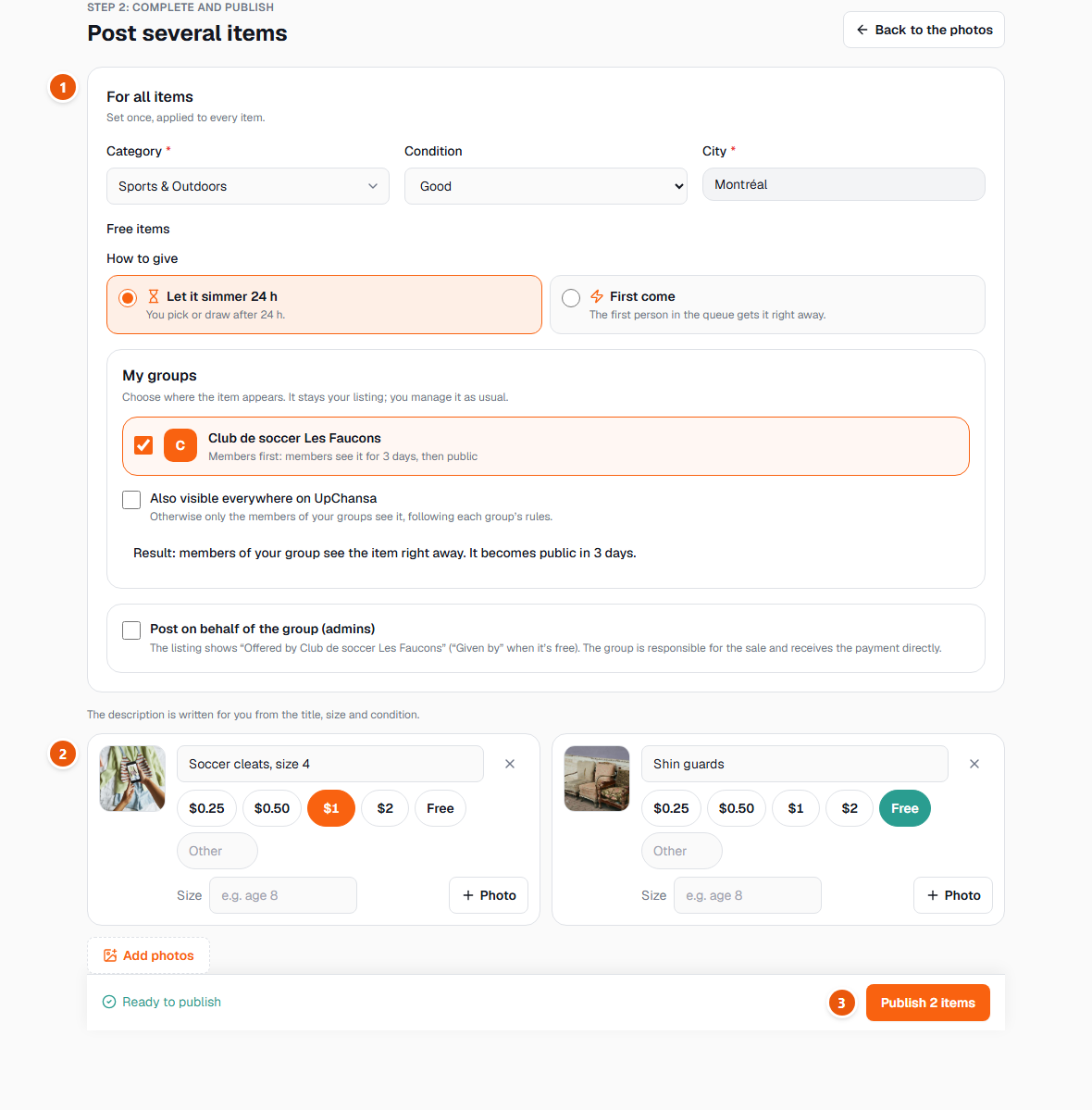
Post several items at once. Twenty pieces of clothing at $1 are not posted one by one. On the group page, choose Post several items: pick the photos first — one photo per item — and each photo becomes a draft.
- 1Set the category, the condition, the city and the group once, at the top. They apply to every item.
- 2Give each item a title (and a size if you like). The description is written for you from the title, the size and the condition.
- 3Choose a price in one tap — $0.25, $0.50, $1, $2 or Free — or type another one. The bar at the bottom says which items still miss a title or a price, then Publish puts them all online at once.
Running the group from there is mostly the Pending tab (items waiting for approval, when posting needs it) and the Members tab, where you can name other admins and remove or ban someone. Removing an item from the group never deletes the member's listing — and an item that was only visible in a private group becomes hidden, never public.
You can have several admins, but the creator is protected: other admins cannot remove you, and only you can delete the group. Before you leave it, pass on the creator role to another admin from the Settings tab.
A group is for adults, including school and daycare groups: no child's name, photo or other personal information, anywhere. And a private group is never private from UpChansa — the site's rules, reports and suspensions apply in every group.